


 免费试用
免费试用 免费试用
免费试用


iPhone becomes more and more popular among people, which stimulates more people to switch from ZTE to iPhone to catch up with the trend. This calls for some methods to transfer data from ZTE to a new iPhone. This guidance will do much help to solve this problem.
Part 1: How to Transfer Data from ZTE to iPhone via Gmail
很多人 use Move to iOS app to move data from Android to iPhone. however it usually doesn't work well, you can continue to read the following content.
In order to address the issue of how to transfer data from ZTE to a new iPhone, you can resort to Email to help you to achieve the goal. The detailed steps will show you how to make it. Here I would like to take contacts for instance.
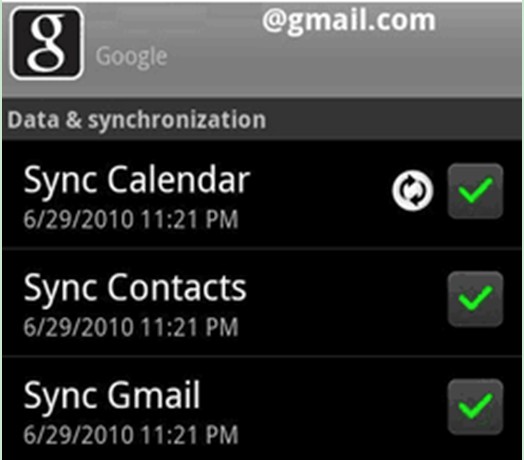
1. On your ZTE, you need to use your password to log into your Gmail account and then choose to tick the option of "Sync Contacts". Make sure your ZTE is connected with good Wi-Fi network.
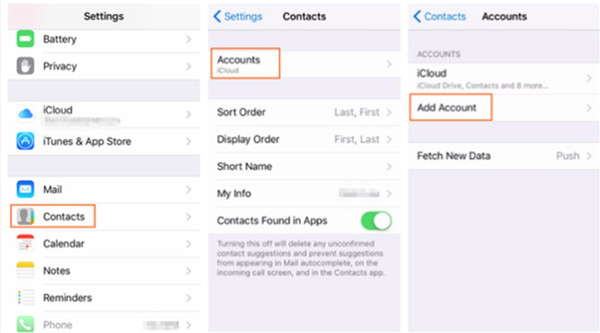
2. When the sync process comes to an end. Pick up your iPhone to continue to deal with how to transfer files from Android to iPhone. Move to "Settings > Contacts >Accounts" and then choose "Add Account > Google" in order. Log into the Gmail account you have just used on your ZTE.
3. After that, you need to turn on the "Contacts" panel on iPhone. If your iPhone asks you if you desire to merge with the contacts on iPhone, choose "Yes" to complete the procedure to transfer data from ZTE to a new iPhone.
If you want to transfer other files from ZTE to iPhone, you can also refer to the steps stated above to assist you to switch from ZTE to iPhone smoothly.
Part 2: How to Transfer Data from ZTE to iPhone via Windows Explorer
When it comes to solving how to transfer files from Android to iPhone, Windows Explorer is also a good tool to make use of. As for how to reach your aim to switch from ZTE to iPhone, you can have a look at the following instructions. Here I would like to take movies for example. iTunes is also needed in this solution.
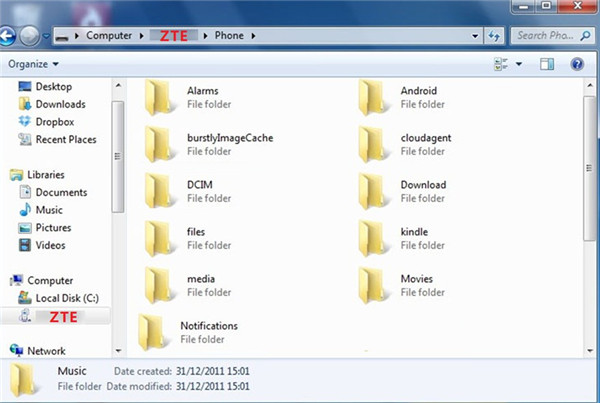
1. Connect ZTE with computer with suitable USB cable and then your computer will detect it as an external hard drive. The device icon will shown in Windows Explorer interface.
2. Run the latest version of iTunes on computer and then navigate to "Edit > Preferences > Devices". Choose the option of "Prevent iPods, iPhones and iPads from syncing automatically" to check.
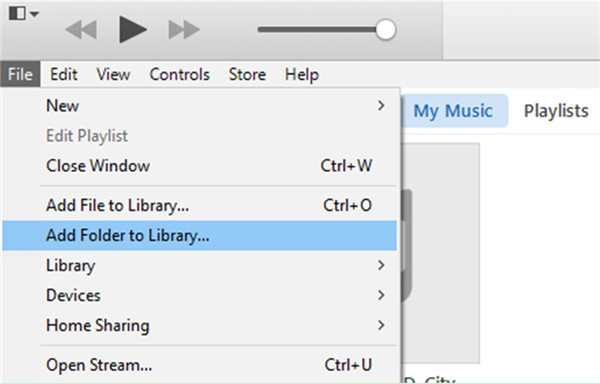
3. Insert iPhone into computer via matched USB cable and then move to "File > Add File to Library" or "File > Add Folder to Library" on iTunes interface. Browse your computer to choose the movie files on your ZTE folder to add to iTunes library.
4. When your ZTE movies are in iTunes library, you need to move to "Settings > Summary > Movies" tab. Check "Sync Movies" in the left part of the iTunes interface. You can choose "Automatically include all movies" or "Automatically include selected movies" as you prefer. After that, tap on the "Apply" button at the bottom right of the iTunes window.
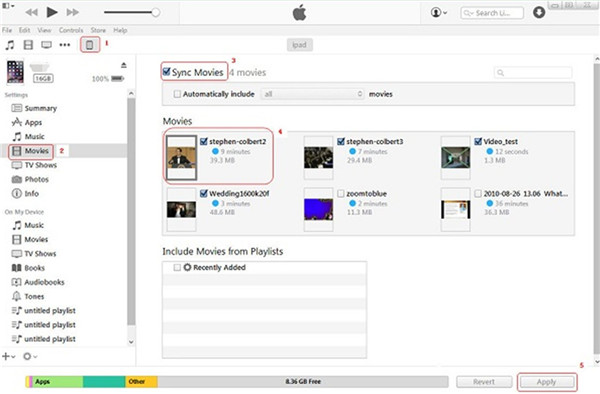
This solution is quite helpful to deal with how to transfer files from Android to iPhone. You just need to add ZTE files to iTunes library and then sync to iPhone.
Part 3: How to Transfer Data from ZTE to iPhone via iCloud
If you want to fix how to switch from ZTE to iPhone, iCloud.com is also a good choice. This part will direct you to realize your target successfully. Photos will be used as the instance file type in this solution.
1. Insert ZTE into computer via USB cable and your computer will be recognized it as one hard drive.
2. On your computer, move to the interface of iCloud online and then log into it with your Apple ID and password that you are using on iPhone. Click on "Photos" panel to check all iPhone pictures.
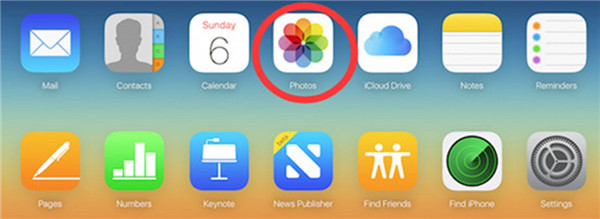
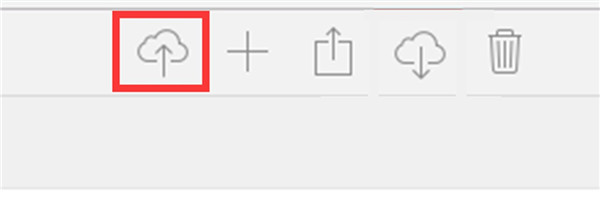
3. Click on the upload button at the top right of the window and move to the photos in your ZTE storage folder on computer to add them to iCloud for later use.
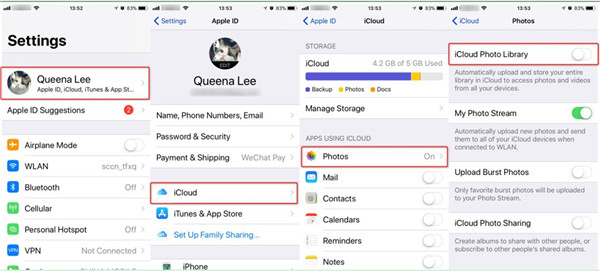
4. On your iPhone, click on "Settings > Name/Apple ID > iCloud > Photos > iCloud Photo Library" to enable the sync of photos between iCloud and iPhone. Make sure your iPhone is connected with Wi-Fi network. After a while, your ZTE photos will be accessible on iPhone.
This way to cope with how to transfer files from Android to iPhone is a little complex. If you are wondering if there is a professional program to help you to achieve your goal to transfer data from ZTE to a new iPhone, you can continue to read the following contents.
Part 4: How to Transfer Ddata from ZTE to iPhone via Leawo iTransfer
Leawo iTransfer is just the powerful tool you need to fix how to transfer data from ZTE to a new iPhone. It is professional in transferring files among iTunes, computers and iOS devices. You can check out the detailed steps shown below to know how to use it to realize your goal to switch from ZTE to iPhone easily. Here I would also like to take pictures for instance.
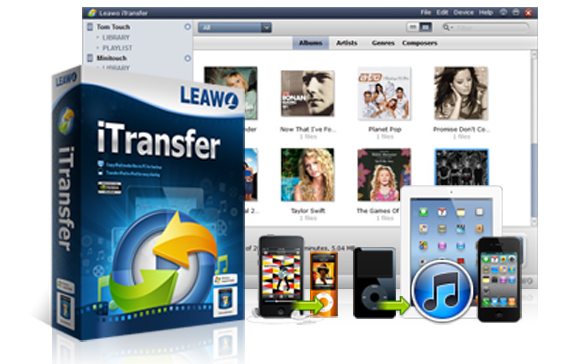
Leawo iTransfer
☉ 轻松在 iOS 设备、iTunes 和 PC 之间传输文件。
☉ 无需 iTunes 即可传输多达 14 种数据和文件。
☉ 支持最新的iOS设备,如iPhone 7、iPhone 7 Plus等。
☉ 播放、查看和删除 iOS 设备上的数据和文件。

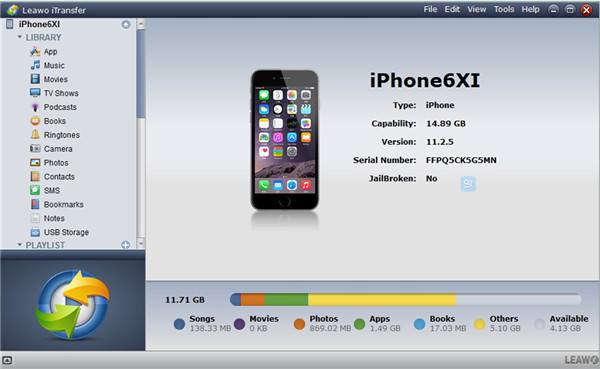
1. Connect ZTE & iPhone to Computer and Run Leawo iTransfer
Connect both ZTE and iPhone with computer with matched USB cables. Launch Leawo iTransfer, and it will detect your iPhone automatically. Your ZTE will be detected as a hard drive by computer.
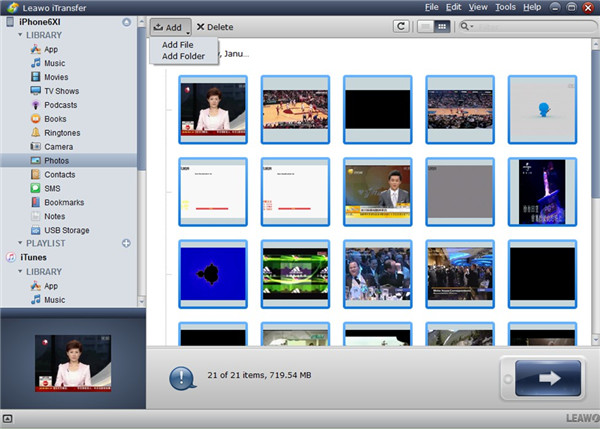
2. Add Pictures to iPhone from ZTE
Click on the iPhone icon, and then tap "LIBRARY > Photos". iPhone photos will display in the right part of the software window. Click on the "Add" button and locate to the photos in your ZTE storage folder. Click on "Open", and the transfer process will be ignited. When the transfer is over, you will get the ZTE photos you need on iPhone.
Just with a few clicks, you can transfer data from ZTE to iOS devices simply. You can now download this software to test to know how professional it is.
-

WinX DVD Author 评测:现在还能用来制作 DVD 吗?Cassie/ 2026-01-19
-
RecordFab 评测:这是一个好的选择吗?晴/2026-01-19
-
如何轻松节省 Twitter 空间录制内容?Cassie/ 2026-01-19
-
Apple TV+ 提供免费试用吗?晴/2026-01-13
-
有多少人可以观看 Disney 同时Leia/ 2026-01-12
-
如何免费截取 Netflix 屏幕截图?4 种方法供您尝试Cassie/ 2026-01-12
-
如何录制 YouTube 视频:分步指南晴/2026-01-08
-
在 YouTube 上禁用 YouTube Shorts 的简单方法晴/2026-01-07
-
如何铸造 Disney 添加到您的电视Leia/ 2026-01-05
-
Crave流媒体服务全面评测:精彩纷呈还是令人失望?Patrick/ 2026-01-05


-
12 个最佳类似 BestGore 的恐怖视频网站八月/2025-03-17
-
12 个最佳类似 BestGore 的恐怖视频网站八月/2024-02-22
-
2025 年 12 个最佳免费网络剧集下载网站八月/2025-02-05
-
免费下载动漫的十大网站八月/2024-12-27
-
排名前 5 位的 OnlyFans 查看工具,可免费查看 OnlyFans八月/2024-04-29
-
观看未经审查的动漫的十大网站八月/2024-02-21
-
[2026] AudioBookBay 代理网站和免费有声读物的替代品Cassie/ 2026-01-06
-
如何从 MissAV 下载视频? – 如何下载 MissAV JavPatrick/ 2025-02-08
-
OnlyFans 十大搜索功能,助你找到心仪对象八月/2024-02-29
-
2025 年 7 个最佳免费菲律宾电影下载网站八月/2024-10-31


