


 免费试用
免费试用 免费试用
免费试用


As one of the most popular media player, Windows Media Player can be usually your first media player since you have obtained a computer. As the default media player, undoubtedly, Windows Media Player can provide the most easy and convenient solutions for audio, video and image users due to its simple and professional hardware support. But now with the wide spread of various digital media players, you may wonder that whether the Windows Media Player has already lost its popularity. That is quite normal that you may find that Windows Media Player lacks of customized features when many other media players have been introduced. Concerning the customized features of a piece of media player, the first thing you come to your mind is that whether the player supports subtitles or not. If the media player can enable subtitles, then you can freely choose the specific part of the video by referring to the subtitles. Does Windows Media Player support subtitles actually? How to enable subtitles on Windows Media Player? If you have not obtained the methods to enable and disable subtitles on the Windows Media Player, next you can refer to the following article for the detailed information about Windows Media Player subtitles.
Part 1: Windows Media Player subtitles: enable and disable
How to enable subtitles on Windows Media Player? Even though the subtitle function of Windows Media Player is quite simple and limited, sometimes enabling the subtitles will be helpful in some cases. Please follow the steps below to enable and disable the subtitle of Windows Media Player.
步骤 1。 Run the Windows Media Player on your computer.
步骤 2。 Click the "Play" on the menu column to select "Lyrics, Captions, and Subtitles", and then click "On if Available" if you want to enable the subtitles or click "Off" if you want to disable the subtitles.
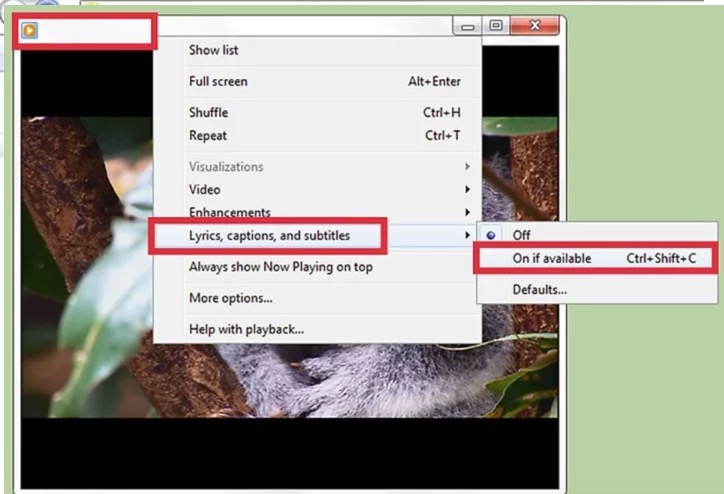
步骤 3。 If the menu isn't visible, you can click "Organize", then choose "Layout" and "Show menu bar" to show up the "Play" menu. Then follow the step 2 to enable or disable the Windows Media Player subtitles.
Part 2: Windows Media Player subtitles: add external subtitle
But the question is if the video doesn't contain a subtitle, referring to the above steps will not enable the subtitles still. In the case, how to enable subtitles on Windows Media Player or how to add eternal subtitles to a video? Next you also need to follow the steps below to make sure the subtitles can be added successfully.
步骤 1。 Download a third-party subtitle program called DirectVobSub which is used to show subtitles while playing videos. Then install it on your computer.
步骤 2。 Download the subtitle files and make sure the subtitle files and the original video file are kept in the same folder. And the name of the subtitle files are with .srt extension.
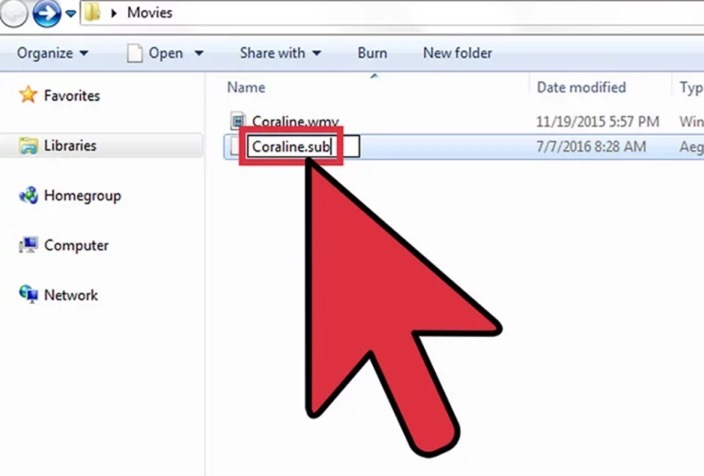
步骤 3。 Restart Windows Media Player. The subtitles will show up beneath the screen of the video automatically.
Be noted that this method only adds external subtitle to the playing process. We also have another tutorial to teach you how to 为视频添加字幕 as an internal one, check it out if you are interested.
Part 3: Ultimate Windows Media Player Alternative
Since many of you have encounter some problems about Windows Media Player subtitles, then maybe the best and straightforward solution is to use a Windows Media Player替代. Here, you can use Leawo 蓝光播放器 instead. As a 100% free and 6-in-1 media player software, Leawo 蓝光播放器包含您休闲娱乐所需的所有媒体播放解决方案,包括 4K, Blu-ray, DVD, CD, HD (4K), MPEG, WMV and so on. The most important is that it allows you to set the subtitles according to your preference. Additionally, with advanced image and audio processing technology, Leawo Blu-ray Player provides you extraordinary movie playback and cinema-like experience. The following steps will guide you to set personal subtitles easily.

Leawo 免费蓝光播放器
☉ 100% 免费电影播放器,供 Mac 用户播放超高清电影 4K、1080P和720P视频免费。
☉ 免费蓝光光盘播放器播放 4K 蓝光碟与1080P蓝光碟,不论碟片保护与区域码。
☉ 支持多种音频解码系统,如Dolby、DTS、AAC、TrueHD、DTS-HD等。
☉ 在媒体播放期间调整字幕、视频和音频。


步骤 1。 下载 Leawo 蓝光播放器并安装它。
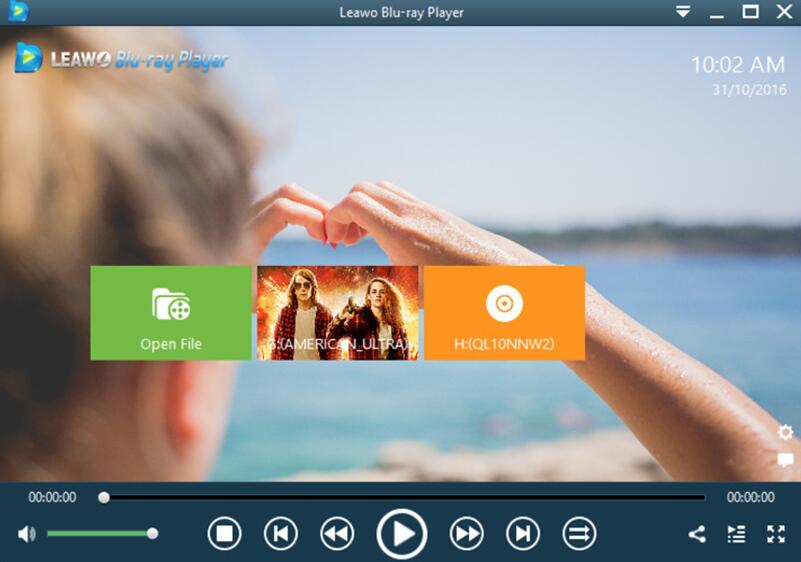
步骤 2。 Enter the main interface and load the video on the computer by clicking the "Open File" button on the home interface.
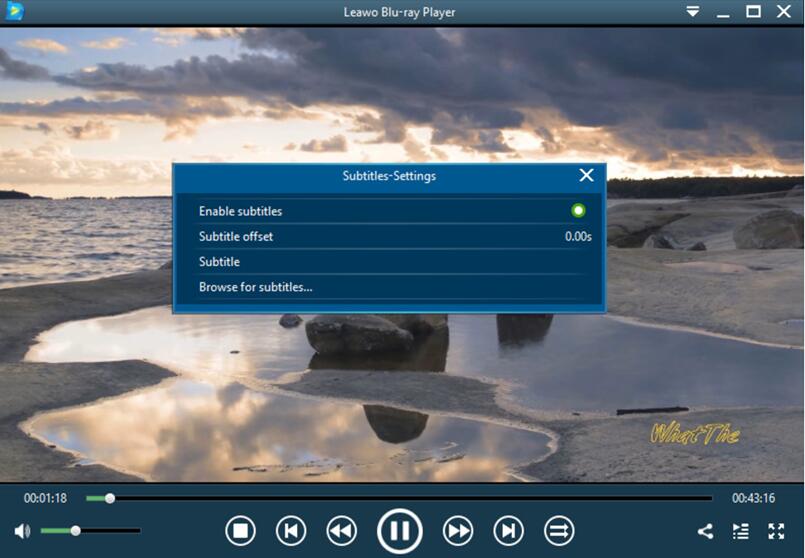
步骤 3。 Set subtitles. After loading the video, you can start to set the subtitles of the video. On the playback screen, you can see 4 icons when you move your mouse to the title area on the upper right-hand corner. Click the first icon to set subtitles, including "Enable subtitles", "Subtitle offset", "Subtitle selecting", "Browse for subtitle". With Leawo Blu-ray Player, you can easily enable and disable subtitles with ease and accuracy. It will not appear any subtitle problems any more.
Bonus: Where to download subtitles
It is undoubted that subtitles for movies have a lot of benefits, with the first one being the ability to understand the content you are watching in case you are not familiar with the language. They are also of great help when you want to learn that particular language. You can not only practice your listening skills and expand vocabulary, but you also get to understand the culture and traditions of a certain country. Windows Media Player and its alternative Leawo Blu-ray Player support external subtitles and we will show you where you can grab them for free.
This website is another one of the biggest source for subtitles. Just like OpenSubtitles which we mentioned above, it is available in multiple languages. It also provides a great tool for advanced search, and the strengths of search can also be matched with those of OpenSubtitles.
This is an easy to use website that can offer you subtitles for your movies and TV shows. All the files on the website are in the SRT format. However, its search tools are not as great as those that you can find on Subsene. But do not let that discourage you because it is still a great website for subtitles.
If you are looking for subtitles specifically for TV shows and series, then this website is the one you should use. In its database, there are almost 3000 TV shows which are in different genres. The biggest downside of this website is that the subtitles are strictly for TV shows, and you may not be able to get subtitles for movies.
While TV subs we mentioned above strictly focuses on TV shows, Movie subtitles is a website that strictly focuses on offering subtitles for movies. You can find subs not only for the latest blockbusters or trending movie, but also for the classical movies. Navigating through this website is so easy, and you can mist definitely find what you are looking for.
Among the most visited websites for people seeking subtitles is YIFY Subtitles, which is another great website offering them. It will allow you to sort movies by genres and languages, and if that is not enough you can set your favorite languages in the bar on the website so that you can spend less time setting the preferences next time. The collection of subtitles available is very impressive too, although the options are a bit limited in comparison to other websites.
如果您只想寻找英语字幕,那么这个网站就是您的理想之选。它提供许多热门电影和电视节目的字幕。您可以轻松找到自己喜欢的电视节目或电影的字幕,所有最新添加的电影字幕都会显示在网站主页上。
-

RecordFab 评测:这是一个好的选择吗?晴/2026-01-19
-
如何轻松节省 Twitter 空间录制内容?Cassie/ 2026-01-19
-
Apple TV+ 提供免费试用吗?晴/2026-01-13
-
有多少人可以观看 Disney 同时Leia/ 2026-01-12
-
如何免费截取 Netflix 屏幕截图?4 种方法供您尝试Cassie/ 2026-01-12
-
如何录制 YouTube 视频:分步指南晴/2026-01-08
-
在 YouTube 上禁用 YouTube Shorts 的简单方法晴/2026-01-07
-
如何铸造 Disney 添加到您的电视Leia/ 2026-01-05
-
Crave流媒体服务全面评测:精彩纷呈还是令人失望?Patrick/ 2026-01-05
-
详解:如何离线观看WWE节目Patrick/ 2026-01-05


-
12 个最佳类似 BestGore 的恐怖视频网站八月/2025-03-17
-
12 个最佳类似 BestGore 的恐怖视频网站八月/2024-02-22
-
2025 年 12 个最佳免费网络剧集下载网站八月/2025-02-05
-
免费下载动漫的十大网站八月/2024-12-27
-
排名前 5 位的 OnlyFans 查看工具,可免费查看 OnlyFans八月/2024-04-29
-
观看未经审查的动漫的十大网站八月/2024-02-21
-
[2026] AudioBookBay 代理网站和免费有声读物的替代品Cassie/ 2026-01-06
-
如何从 MissAV 下载视频? – 如何下载 MissAV JavPatrick/ 2025-02-08
-
OnlyFans 十大搜索功能,助你找到心仪对象八月/2024-02-29
-
2025 年 7 个最佳免费菲律宾电影下载网站八月/2024-10-31


